Web Image Formats Explained: JPEG — The Standard Format for Photos Online
The first part of our series on web image formats. A clear, practical guide to how JPEG works, why it’s still everywhere, and how to prepare fast, lightweight images — all in your browser.
Fri Nov 21 2025 • 5 min read
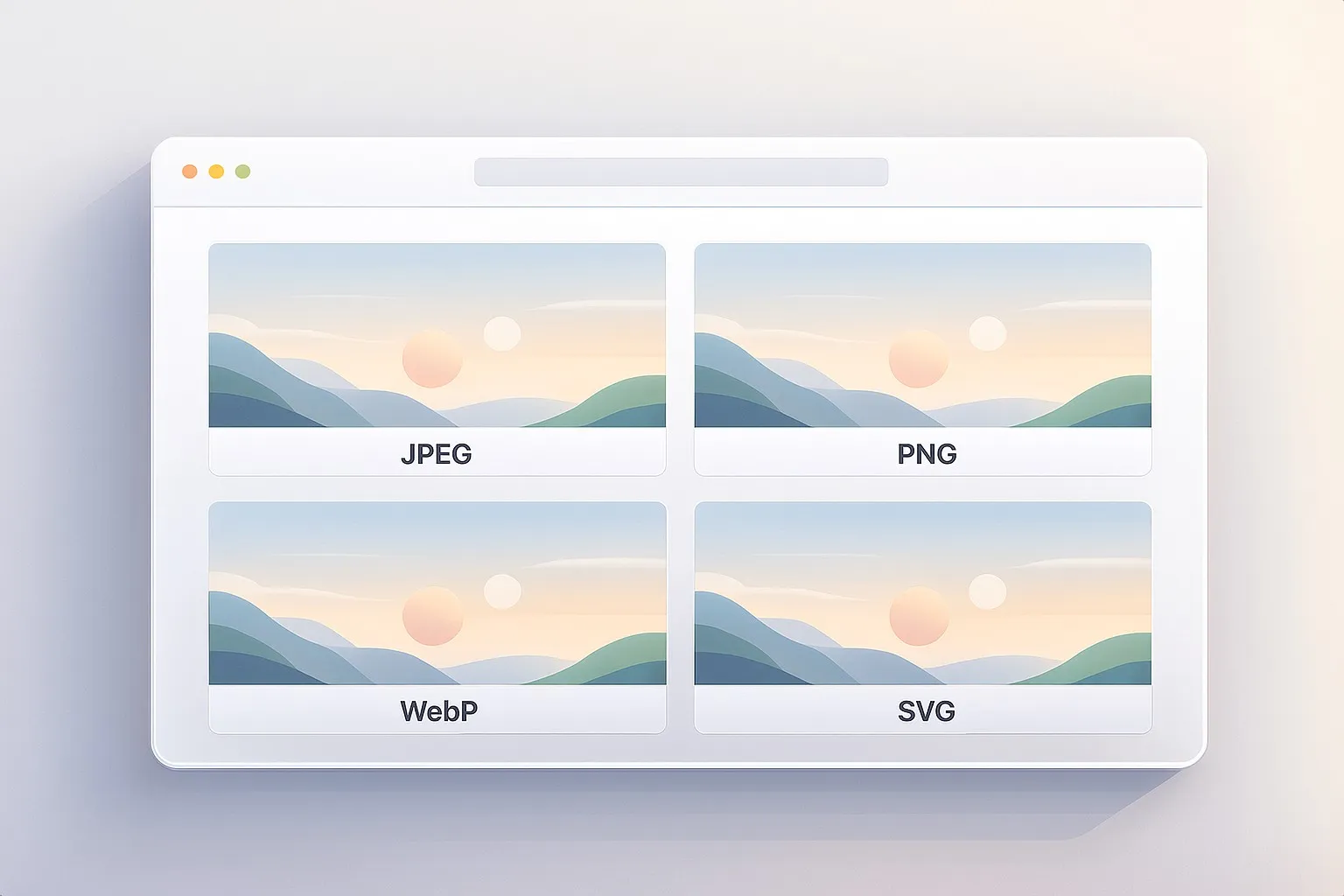
This is the first article in the series Web Image Formats Explained, where we walk through the formats that quietly shape the visual web — and how to choose the right one for your site.
JPEG has been around for more than thirty years, yet it still powers most of the photos you see online. Product shots, hero images, blog illustrations — the moment you need something photographic and lightweight, you almost always end up with a JPEG.
Let’s unpack why that is, how JPEG works behind the scenes, what makes progressive JPEGs feel faster, and how to prepare clean, small files using a few simple browser-based tools.
Why JPEG Became the Web’s Default Photo Format
JPEG wasn’t invented for the web. The format was born in the late 1980s, when computers had tiny hard drives, dial‑up connections were painfully slow, and sending a single high‑resolution image could be a small event.
A group called the Joint Photographic Experts Group set out to create a universal, open way to shrink photographic images while keeping them visually believable. Their goal wasn’t perfection — it was practicality. They wanted a format small enough to share easily, flexible enough to adapt to many devices, and simple enough to implement anywhere.
When the web appeared in the early 90s, JPEG slid naturally into place. It solved the biggest problem early websites faced: how do you show real‑world photos without making people wait minutes for them to load?
By the mid‑90s, JPEG was everywhere:
- Every browser supported it.
- Every digital camera used it.
- Every operating system and editor handled it smoothly.
That early adoption created a foundation that never really faded. Even today — with newer formats like WebP available — JPEG stays relevant because it’s reliable, predictable, and universally understood.
To understand why JPEG compresses so well and why it still fits modern workflows, we need to peek inside how it works.
You can convert all of your images to JPEGs in one go using our Image Converter.
How JPEG Compression Works
Think of a photo as a mix of broad shapes and fine details. JPEG leans heavily on how human vision works: we’re great at noticing big shapes and contrast, but much worse at noticing tiny, high‑frequency details. JPEG takes advantage of that.
Here’s what actually happens when you save a JPEG:
- The image is broken into 8×8 pixel blocks. Each block is processed independently. This is why strong compression creates that recognizable “blocky” look — those squares become visible.
- Each block is transformed into frequency data. Low frequencies represent smooth gradients or large shapes. High frequencies represent sharp edges, textures, and noise.
- JPEG keeps more low frequencies and simplifies high ones. Because our eyes care more about the big shapes, removing some micro‑detail barely registers visually.
- The data is quantized. This is where JPEG becomes truly “lossy”: subtle detail is rounded off and discarded.
- Finally, the data is efficiently encoded. Redundant patterns are packed tightly so the file becomes even smaller.
The key idea is this: JPEG removes the information you’re least likely to miss first, which is why you can often compress a photo quite aggressively using an Image Compressor without visible degradation.
You can use our Image Compressor to compress all of your images in one go
Understanding these building blocks helps explain why progressive JPEGs behave differently — so let’s move to those.
Now that we understand the basics, we can talk about one of JPEG’s most useful variations: the progressive JPEG.
Why Progressive JPEGs Feel Faster
Baseline JPEGs and progressive JPEGs contain the same end result — but the way they deliver data to the browser is completely different.
You can use our Progressive JPEG Checker to check if your images have progressive JPEG encoding and many more.
Baseline JPEG (the traditional format)
A baseline JPEG stores all of its data in one continuous stream. The browser decodes it in order:
- Starting at the top
- Working downward
- Painting rows as they arrive
This is why on slow connections you see that familiar “top‑to‑bottom reveal.”
Progressive JPEG (the smoother format)
A progressive JPEG rearranges the same image data into multiple scans:
- The first scan contains low‑frequency information — the broad shapes.
- Later scans refine detail — edges, textures, definition.
This creates the effect of the whole image appearing quickly, then sharpening over time.
You can use our Progressive JPEG Converter to convert your images to progressive JPEGs.
What’s different internally?
Baseline JPEG encodes each 8×8 block fully in one go. Progressive JPEG splits each block’s information into separate passes, ordered by importance:
- First pass: tone and structure
- Later passes: sharper details
This doesn’t make the file dramatically smaller, but it improves perceived performance because the viewer isn’t staring at a half‑loaded image.
You can convert any regular JPEG into a progressive one using the Progressive JPEG Converter. And if you want to check whether your existing files are progressive, you can drop them into the Progressive JPEG Checker.
When JPEG Works Beautifully
JPEG gives you clean, lightweight results when your image includes lots of natural variation: shadows, gradients, subtle textures. Things like:
- Portraits and travel photos
- Hero banners and featured images
- Product shots on real backgrounds
- Lifestyle photography
If your page has large visuals and you care about speed (which is most pages), converting them with the Image Converter or compressing them with an Image Compressor often gives you the best combination of visual quality and fast loading.
When JPEG Isn’t the Right Tool
Because JPEG relies on those 8×8 blocks, it struggles with anything that needs precise, crisp edges:
- Logos
- Icons or UI elements
- Text on flat backgrounds
- Anything requiring transparency
These often look soft or noisy once compressed. For those cases, PNG, WebP, or SVG will serve you better — and we’ll explore each of them in this series.
JPEG is perfect for photos, but it falls apart on sharp edges, icons, and transparency. That’s where PNG comes in — the format built for clarity and control.
In the next article of Web Image Formats Explained, we’ll take a closer look at PNG.