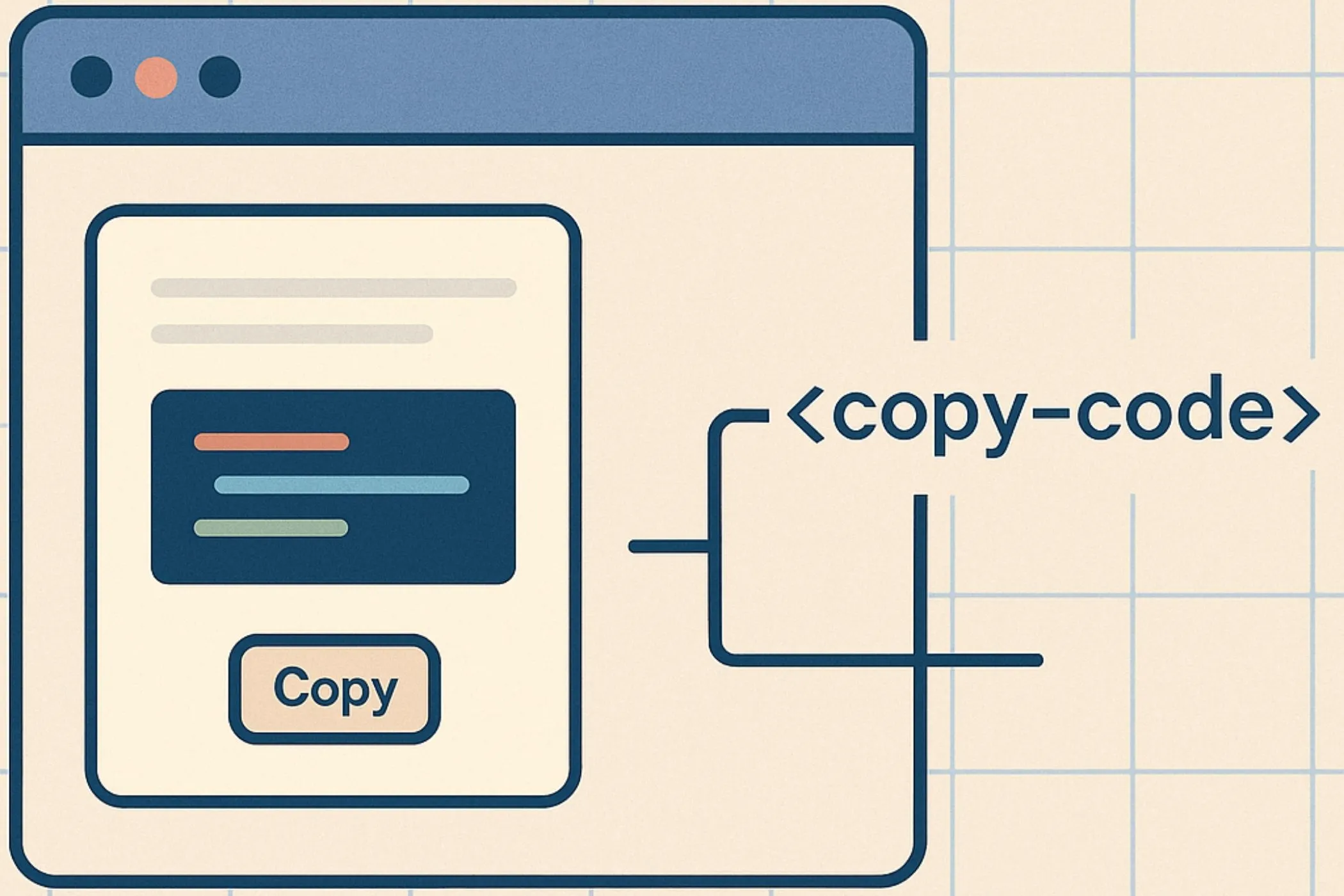
Generate a complete favicon package from one image
A good Favicon Generator should do more than export a single tiny icon.
Modern websites often need a full set of files for:
- browser tabs
- bookmarks
- mobile home screens
- pinned shortcuts
- PWAs
- higher-resolution app-style icons
This tool takes one source image and turns it into a ready-to-use favicon package you can drop into your website.
You can:
- upload a PNG, JPEG, or WebP image
- preview the result live
- keep the background transparent or add a solid or gradient background
- adjust padding so the icon does not feel cramped
- add corner radius for a softer app-icon look
- download a ZIP with favicon.ico, PNG sizes, apple-touch-icon, site.webmanifest, and a setup README
If you want a fast way to create a clean favicon set without Photoshop, build tooling, or manual image exports, this tool is built for exactly that workflow.
What a favicon is
A favicon is the small icon associated with a website or web app.
You see favicons in places like:
- browser tabs
- bookmark bars
- browser history lists
- mobile shortcuts
- search result enhancements in some environments
- installed web apps and PWA launch surfaces
Historically, many sites only shipped a single favicon.ico file.
That still matters, but modern sites usually need more than that. Different devices and platforms benefit from different sizes and formats, especially when a site is saved to a home screen or used like an app.
That is why a complete favicon package is much more useful than exporting one tiny image.
What this tool generates
This tool creates a practical favicon bundle for modern web use.
PNG favicon files
The ZIP includes these PNG sizes:
favicon-16x16.pngfavicon-32x32.pngfavicon-48x48.pngfavicon-64x64.pngfavicon-96x96.pngfavicon-128x128.pngfavicon-192x192.pngfavicon-256x256.pngfavicon-512x512.png
These cover standard browser usage, high-resolution needs, and modern app-like contexts.
Apple touch icon
The ZIP also includes:
apple-touch-icon.pngat 180×180
This is the file commonly used when iOS users add a site to their home screen.
favicon.ico
The package includes a generated favicon.ico file containing multiple icon sizes.
That matters because many browsers and older favicon workflows still expect favicon.ico specifically.
Web app manifest
The tool also generates:
site.webmanifest
This helps provide icon references for installable web apps and PWA-style experiences.
README with install snippet
You also get:
README.md
The README includes:
- the generated file list
- recommended placement
- a copy-ready HTML
<head>snippet
That makes installation much faster, especially if you want a clean handoff into a static site, Astro app, Rails app, Laravel site, or any custom web stack.
Why one source image is enough
Manually creating a favicon set is usually repetitive.
A typical workflow involves:
- resizing the same logo again and again
- exporting multiple PNG dimensions
- generating
favicon.ico - creating an
apple-touch-icon - writing the
site.webmanifest - copying the correct
<link>tags into your<head>
This tool automates that entire process from one uploaded image.
That is especially useful when you are:
- launching a new site quickly
- redesigning a brand icon
- creating a favicon set for client work
- testing alternative logo treatments
- building multiple microsites or tools
How to use the Favicon Generator
1. Upload an image
Drag and drop an image into the upload area, click to browse, or paste an image from your clipboard.
Supported formats:
- PNG
- JPEG
- WebP
For the best results, use a square image with a clear subject and enough resolution to scale down cleanly.
2. Choose a background style
You can choose between:
- Transparent
- Solid
- Gradient
Transparent works best when your source art already looks good on its own.
Solid or gradient backgrounds are useful when:
- the logo is too thin
- the icon blends into browser UI
- the source image has transparency and needs more contrast
- you want a more polished app-icon feel
3. Adjust padding
Use the Padding slider to control how much space surrounds the image.
More padding can help when:
- the logo touches the edges too aggressively
- the icon looks crowded at small sizes
- you want a more balanced, centered appearance
Less padding can help when:
- the mark is already minimal
- you want to maximize visible detail
- the symbol needs more presence at 16px or 32px
4. Adjust corner radius
Use Corner Radius to round the final icon shape.
This is optional, but it can work well when:
- you want an app-style icon look
- the favicon sits on a visible colored background
- a square edge feels too harsh for the brand style
5. Download the ZIP
Click Download favicon ZIP to generate the package.
The ZIP contains all the core files you need, already named for practical deployment.
Transparent vs solid vs gradient background
Choosing the right background can make a much bigger difference than people expect.
Transparent background
Best when:
- your source logo already has good contrast
- the mark is bold and simple
- you want the most flexible output
- the icon is intended to feel minimal
Transparent is often the best choice for logos that were designed with favicon use in mind.
Solid background
Best when:
- your logo is light and needs contrast
- the symbol has interior whitespace that gets lost
- you want a stable brand color behind the icon
- you want the icon to feel more button-like or app-like
Solid backgrounds often improve clarity at smaller sizes.
Gradient background
Best when:
- you want a more vibrant branded presentation
- the favicon doubles as an app icon or tool icon
- the source symbol is simple enough to sit over a richer background
- you want a more premium or modern look
Gradients can look excellent, but they should still preserve legibility at very small sizes.
If the icon becomes hard to read at 16×16, a flatter background is often the safer choice.
Why padding matters for favicons
One of the biggest favicon mistakes is using a logo that fills the entire square too tightly.
At large sizes this may look bold. At small sizes it often feels cramped or blurry.
Padding helps by:
- giving the mark breathing room
- improving visual balance
- reducing edge collisions
- making the icon feel more deliberate
This matters even more when generating many sizes at once, because what works at 512×512 does not always work at 16×16.
A little extra spacing can make the smallest favicon versions look much cleaner.
Why rounded corners can help
Not every favicon should have rounded corners, but they can be useful in the right design context.
Rounded corners tend to work well when:
- the icon uses a filled background color
- the brand identity feels soft, modern, or app-oriented
- the source graphic is centered inside a badge-like shape
They are less necessary when:
- the icon is a standalone mark on transparency
- the logo already has its own silhouette
- the design depends on crisp square edges
The live preview makes it easy to test both directions before exporting.
Best source image tips
The output quality of a favicon package depends heavily on the uploaded image.
For the cleanest results, start with an image that is:
- square or close to square
- high resolution
- built around a single clear mark
- easy to recognize at small sizes
- visually strong without tiny detail
A good favicon source usually is:
- a logo mark
- a monogram
- an app symbol
- a simplified brand badge
- a bold letterform
A poor favicon source often is:
- a full horizontal logo lockup
- detailed illustrations
- small text inside the image
- busy photos
- images that rely on subtle shadows or fine textures
Favicons are tiny by nature. Simplicity almost always wins.
Why tiny text and complex logos often fail
A design can look great on a website header and still make a bad favicon.
Common favicon problems include:
- too much detail
- text that becomes unreadable
- thin lines that disappear
- poor contrast against browser UI
- compositions that are not centered well in a square
If your brand uses a full wordmark, the favicon should usually be a simplified symbol rather than the entire logo.
That is not a compromise. It is standard good practice.
Where to place the generated files
In most setups, you should place the exported files in your public web root or public assets directory.
Examples:
- Astro:
public/ - Next.js:
public/ - Vite site:
public/ - Rails:
public/ - Laravel:
public/ - static HTML site: same level as
index.htmlor the site root
The included README explains the expected placement and gives you a copy-ready HTML snippet.
Typical HTML snippet for favicon installation
A modern setup often includes tags like:
<link rel="icon" href="/favicon.ico" sizes="any">
<link rel="icon" type="image/png" sizes="32x32" href="/favicon-32x32.png">
<link rel="apple-touch-icon" sizes="180x180" href="/apple-touch-icon.png">
<link rel="manifest" href="/site.webmanifest">
The generated README gives you the fuller set based on the package contents, so you do not need to write or remember them manually.
Why favicon.ico still matters
Some people assume PNG icons alone are enough.
For many modern cases, PNG covers a lot. But favicon.ico still matters because:
- some browsers still request it automatically
- older patterns and crawlers expect it
- it remains a conventional favicon entry point
- it helps keep compatibility broad and predictable
That is why this tool includes both the traditional ICO file and modern PNG sizes.
Why a web manifest helps
A site.webmanifest file gives browsers structured metadata for installable or app-like experiences.
It can help with:
- PWA icon declarations
- app installation surfaces
- mobile launch presentation
- consistent larger icon references
Even if your site is not a full PWA today, including a clean manifest is a smart modern baseline.
Privacy and local processing
This tool runs entirely in your browser.
That means:
- your image is not uploaded to a server
- generation happens client-side
- the ZIP is created locally on your device
- you keep control over brand files and artwork
This matters for:
- private client branding
- unpublished products
- internal prototypes
- agencies handling multiple brand assets
For many users, privacy and speed are major advantages over server-based favicon generators.
Helpful use cases
Launching a new website
If you are shipping a new site and want a complete favicon set quickly, this tool covers the essential files in one step.
Refreshing a brand icon
When your logo evolves, you can regenerate the whole package without manually exporting every size again.
Creating icons for tool directories or microsites
If you run many tools, landing pages, or branded utilities, it is much faster to standardize favicon output with one workflow.
Preparing PWA-ready basics
The included manifest and larger PNG sizes help create a more complete installable-web-app foundation.
Testing different icon treatments
You can quickly compare transparent, solid, and gradient looks, then export the version that reads best.
Common mistakes and how to avoid them
Using a non-square source image
Favicons are inherently square. Non-square artwork often gets shrunk awkwardly or ends up with too much empty space.
Using too much detail
Fine detail disappears fast at small sizes. Prefer simple shapes and strong contrast.
Ignoring small-size readability
A favicon should still look recognizable at 16×16 and 32×32. Do not judge it only by the large preview.
Skipping padding entirely
An edge-to-edge icon can feel cramped. A little spacing usually improves balance.
Using transparency when contrast is weak
Transparent output is not always best. If the icon blends into browser chrome, use a solid or gradient background instead.
Relying on only one file type
Shipping only one PNG is not as robust as providing favicon.ico, multiple PNG sizes, apple-touch-icon, and a manifest.
Favicon Generator vs manual export workflow
You can build a favicon set manually in a design tool, but it is often slower and easier to get wrong.
Manual workflows usually mean:
- repeated resizing
- export mistakes
- inconsistent naming
- missing device sizes
- forgetting
apple-touch-icon - forgetting the manifest
- forgetting the HTML tags
This tool reduces that work to:
- upload image
- preview and adjust
- download ZIP
- install files
That is a much better workflow when speed and consistency matter.
Who this tool is for
This tool is useful for:
- developers
- designers
- indie makers
- agency teams
- SaaS founders
- bloggers
- ecommerce site owners
- anyone launching or refreshing a website
It is especially helpful when you need a fast favicon creator, favicon.ico generator, or website icon maker that stays private and works directly in the browser.
Why this tool is useful
You can generate favicons with design software, build scripts, or online services, but those options often add friction.
This tool keeps the process simple:
- no account required
- no upload pipeline
- no manual resizing work
- no manifest writing by hand
- no searching for the right HTML tags afterward
It gives you a complete, practical output package from one source image and a few visual controls.
That makes it ideal for quick launches, polished updates, and repeatable web workflows.
Perfect for
- creating a favicon from a logo
- generating
favicon.icoand PNG sizes together - making an
apple-touch-icon - preparing icons for PWAs
- building a clean favicon ZIP for client work
- improving small-icon clarity with background and padding controls
- exporting a complete website icon package in seconds
If you need a fast, private, and flexible Favicon Generator, this tool gives you the full workflow in one place.
Upload an image, adjust the background and spacing, preview the icon live, and download a complete favicon package ready for browsers, mobile devices, and modern web apps.