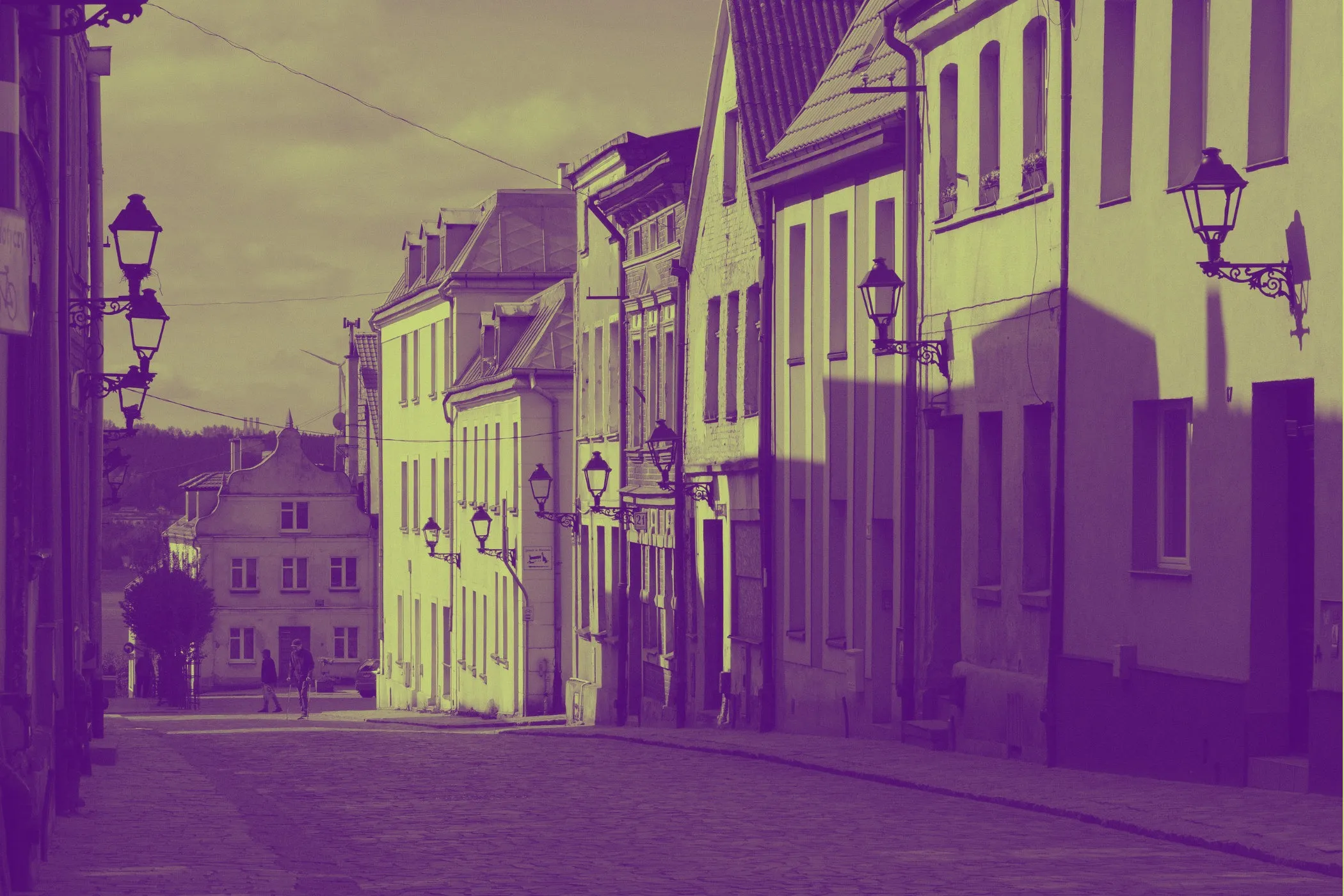
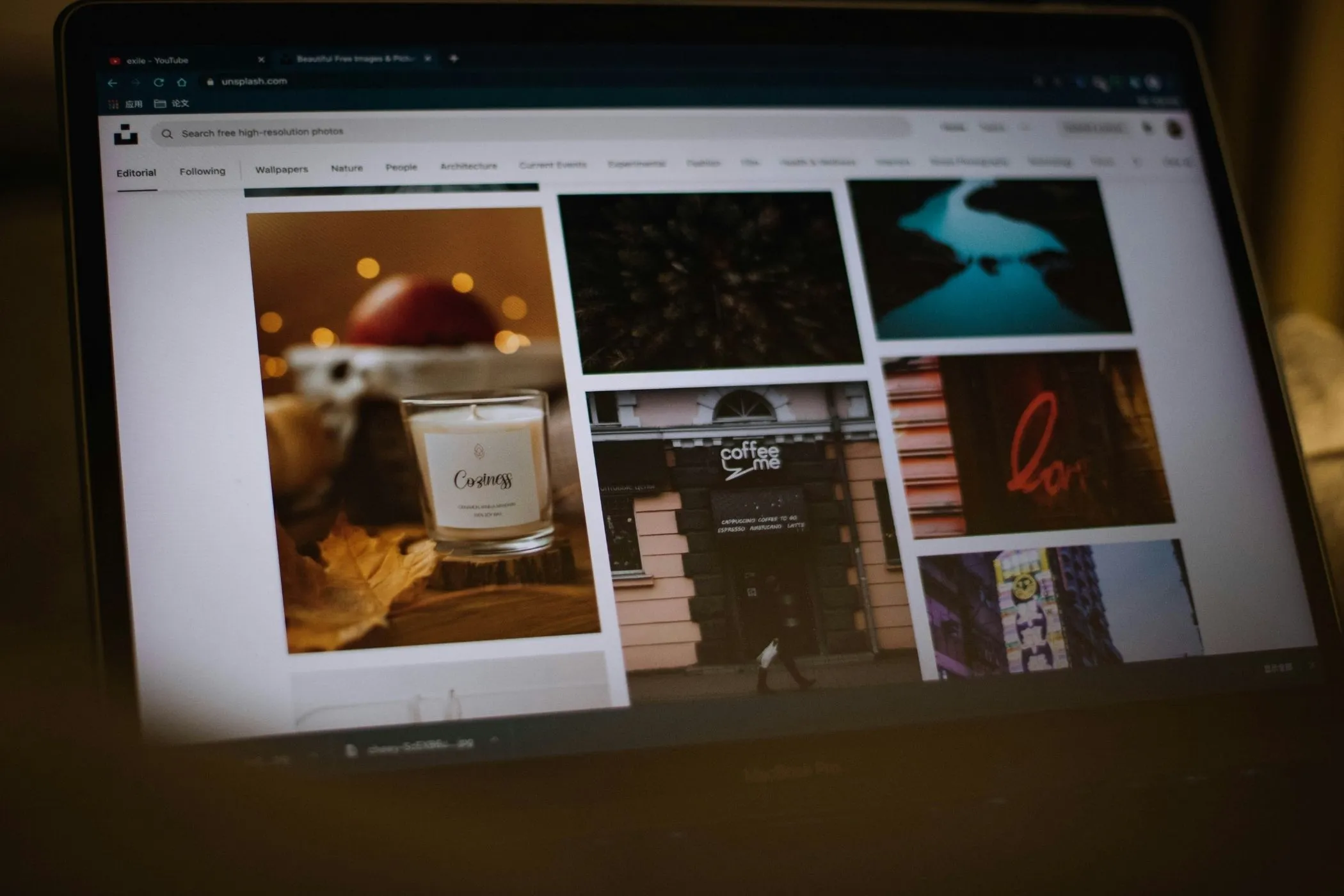
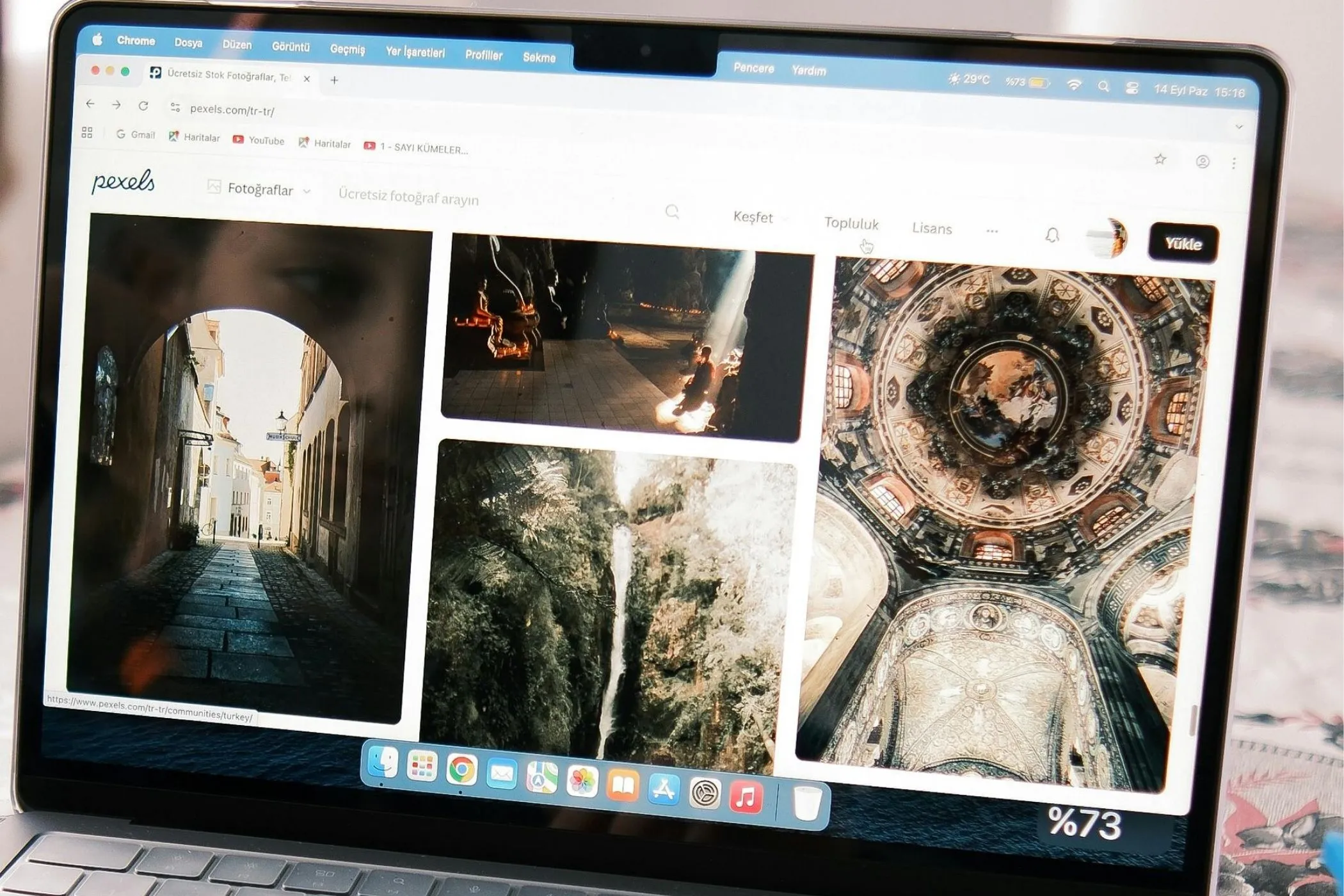
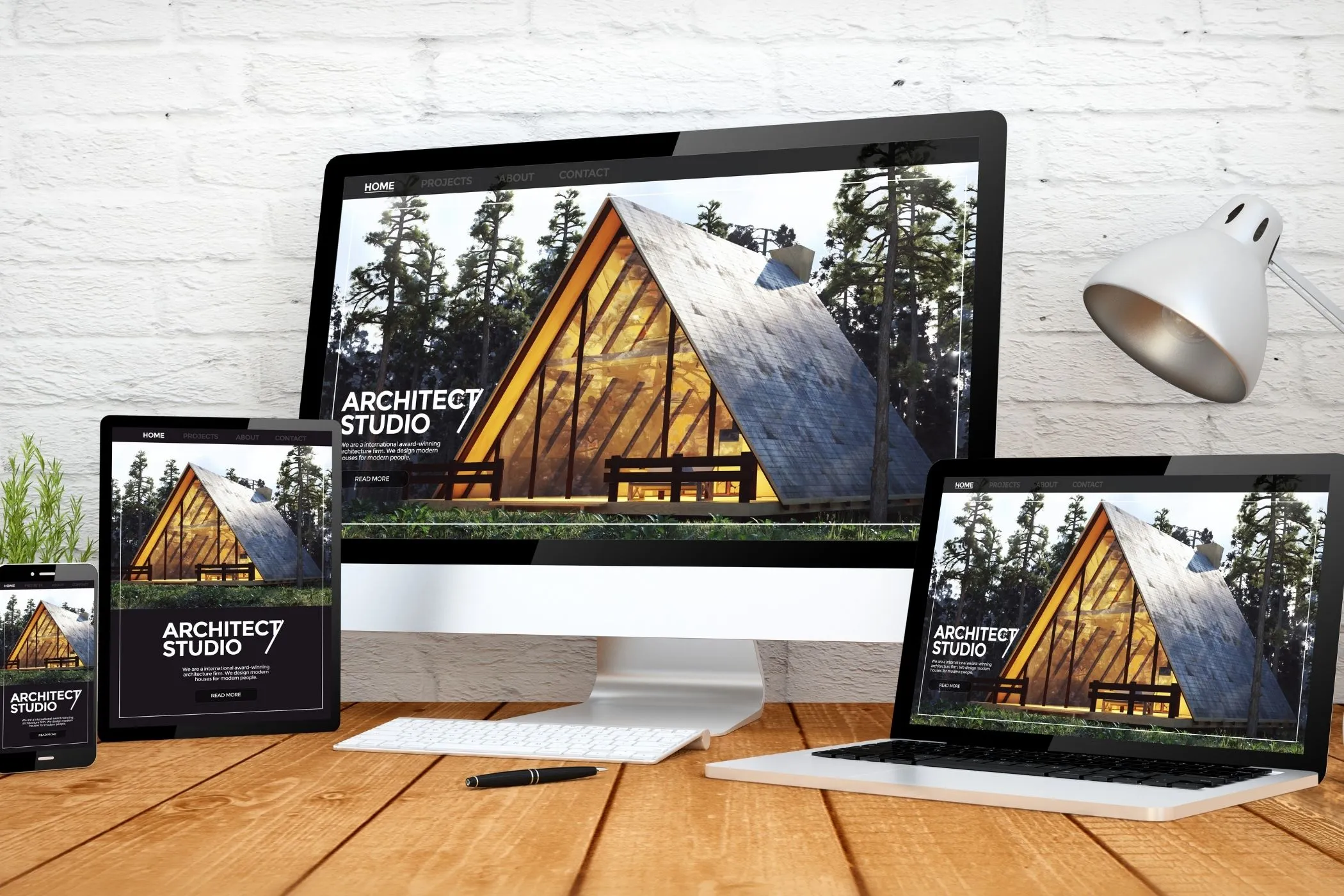
Crop images to a wide 2:1 frame
The 2:1 aspect ratio is a wide format that gives you more horizontal space than standard photo crops without becoming as extreme as ultra-wide banner ratios. It is a practical choice for banners, cover images, panoramic visuals, and layouts where a strong horizontal composition matters.
Cropping an image to 2:1 helps you create a frame that feels wide, clean, and flexible across both web and design use cases.
This tool lets you quickly crop images to the 2:1 ratio while keeping full control over framing and composition.
Everything runs locally in your browser, so your images stay private and the editing process remains fast.
Why the 2:1 ratio is useful
Some images need a noticeably wide shape, but not every project needs the dramatic look of 3:1 or 21:9. The 2:1 ratio is a useful middle ground.
It is commonly useful for:
- website banners
- cover images
- panoramic visuals
- social headers
- presentation graphics
- marketing creatives
Because the frame is wide without being too thin, it works well when you want a banner-style crop that still leaves enough vertical space for the subject to feel readable.
What this 2:1 crop tool does
This tool lets you crop images into a precise 2:1 frame while controlling exactly which part of the image remains visible.
You can:
- Drag and drop images into the tool
- Paste screenshots directly from your clipboard
- Move the image to reposition the subject
- Zoom to tighten or loosen the crop
- Center the composition instantly
- Export one image or batch export multiple crops
The live preview makes it easy to refine the framing before downloading the result.
How to crop an image to 2:1
1. Upload your image
Add an image by dragging it into the tool, selecting it manually, or pasting it from your clipboard.
Supported formats:
- JPEG
- PNG
- WebP
2. Adjust the framing
Open the Edit view to reposition the image inside the 2:1 crop frame.
Inside the editor you can:
- drag the image to reposition the scene
- zoom to create a tighter crop
- use the rule-of-thirds grid to align important elements
This makes it easy to turn standard photos into cleaner banner-style compositions.
3. Export the cropped image
Download the cropped image individually or export several images together as a ZIP archive.
Common uses for 2:1 images
Website banners and hero sections
The 2:1 ratio works well for banners because it gives enough horizontal room for a strong visual while still leaving space for titles, buttons, or branding.
It is useful for:
- homepage banners
- landing page headers
- feature section covers
- blog header graphics
Cover images and social headers
Many cover-style visuals need a wide crop that feels clean and adaptable across different layouts. A 2:1 frame often works well for these use cases because it is wide, but not overly narrow.
Panoramic photo presentation
Landscape and travel photos often benefit from a wider crop when you want to emphasize horizontal movement or scenery.
A 2:1 crop can work well for:
- city skylines
- beaches and coastlines
- mountain scenes
- architecture
Marketing and promotional graphics
Wide graphics are often used in email headers, promotional blocks, and advertising layouts.
A 2:1 crop helps keep the image readable while still giving you room for text overlays or supporting design elements.
Composition tips for 2:1 images
Leave room for text overlays
Wide crops are often used in designs that include headlines, labels, or calls to action. Leaving some open space on one side can make the image more flexible.
Focus on strong horizontal structure
The 2:1 ratio works especially well with scenes that naturally spread across the frame.
For example:
- horizons
- skylines
- product arrangements
- group photos
Avoid placing important elements too close to the edges
Because the frame is wide, edge placement matters more. Keep key subjects slightly inside the crop area so they do not feel cramped.
Use the rule of thirds
The built-in grid can help you position focal points more intentionally.
For example:
- place the main subject near the left or right vertical third
- align horizons along the upper or lower third line
- keep negative space purposeful rather than empty
2:1 crop use cases
This tool is especially helpful when preparing images for:
- website banners
- cover images
- panoramic visuals
- social headers
- presentation graphics
- marketing creatives
Cropping multiple images to the same 2:1 ratio helps maintain consistency across wide-format layouts and banner assets.
How 2:1 cropping works
The tool calculates a 2:1 crop rectangle based on the original image dimensions.
You can reposition and zoom the image inside this frame before exporting the final crop.
Only the selected portion of the image is exported while the rest of the original image is removed.
All processing happens locally in your browser using the original image data.
Perfect for
- designers creating website banners
- marketers building wide promotional graphics
- creators preparing social cover images
- photographers turning landscapes into panoramic crops
- anyone who needs a fast and private way to crop images to a 2:1 ratio
Crop, adjust, export — and your image will fit neatly into wide banner and panoramic-style layouts.